Measurement screen
Used for manually starting a measurement, displaying the output in graphs and exporting data in CSV or JSON format.
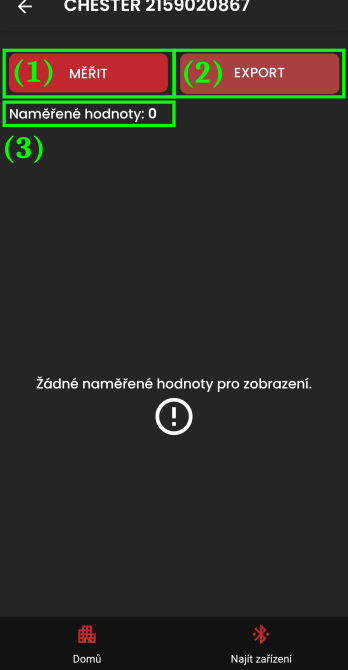
- Start measurement (1)
- Export measured data (2)
- disabled if no data has been measured yet
- a dialog for configuring the export
- Measured-value counter (3)
- the number of measured records
Measuring data
With repeated measurements, the values are gradually added to the graphs.
It is recommended to wait 5–10 seconds between individual measurements, until the device finishes all its internal processes related to recording data.
If a measurement fails after 30 seconds, the device probably did not manage to prepare for it. Try starting a new measurement again.
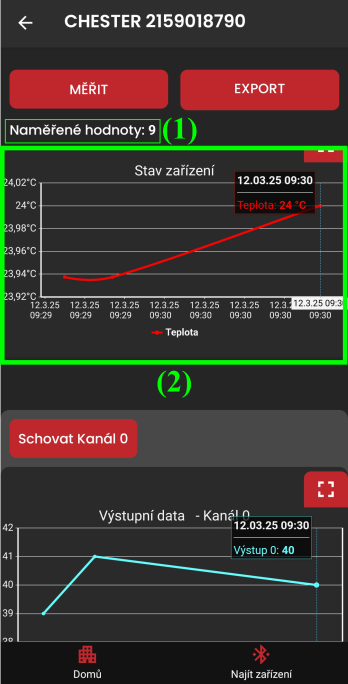
- Number of measured records (1)
- Graphs displaying the acquired data (2)
Detailed guide to working with graphs...
Exporting measured data
Tapping the "EXPORT" button shows a dialog for configuring the export.
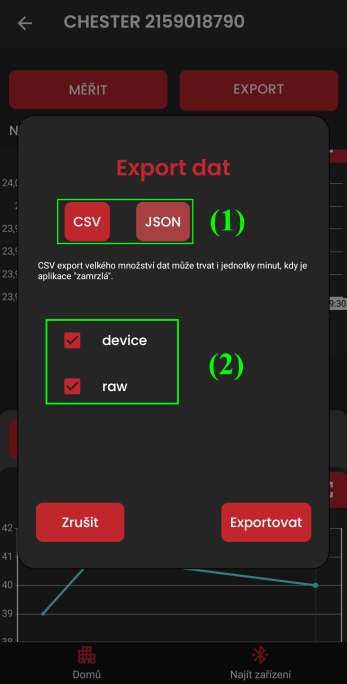
- Choice of export format: JSON or CSV (1)
- Choice of the data types to export (2)
The exported file/folder is then saved to the "Downloads" directory with the name: <device name>_DD-MM-YYYY
Phones often have at least two directories for downloaded files - to find the exports you need to locate the one the data was saved to.
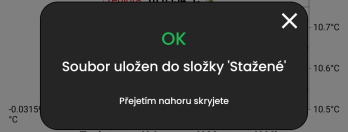
To save files, the app may require access to the file system.
It requests it on every export attempt (until the user grants the permission)