Users
Manage members of your Organization: view users, create new accounts, and assign existing Statotest users to your Organization.
- Organization Administrators: create and assign users in their Organization(s)
- All users: view members and open their own profile
Go to Users from the main navigation.
View members of an Organization
- Find your Organization card
- Click View to expand the table
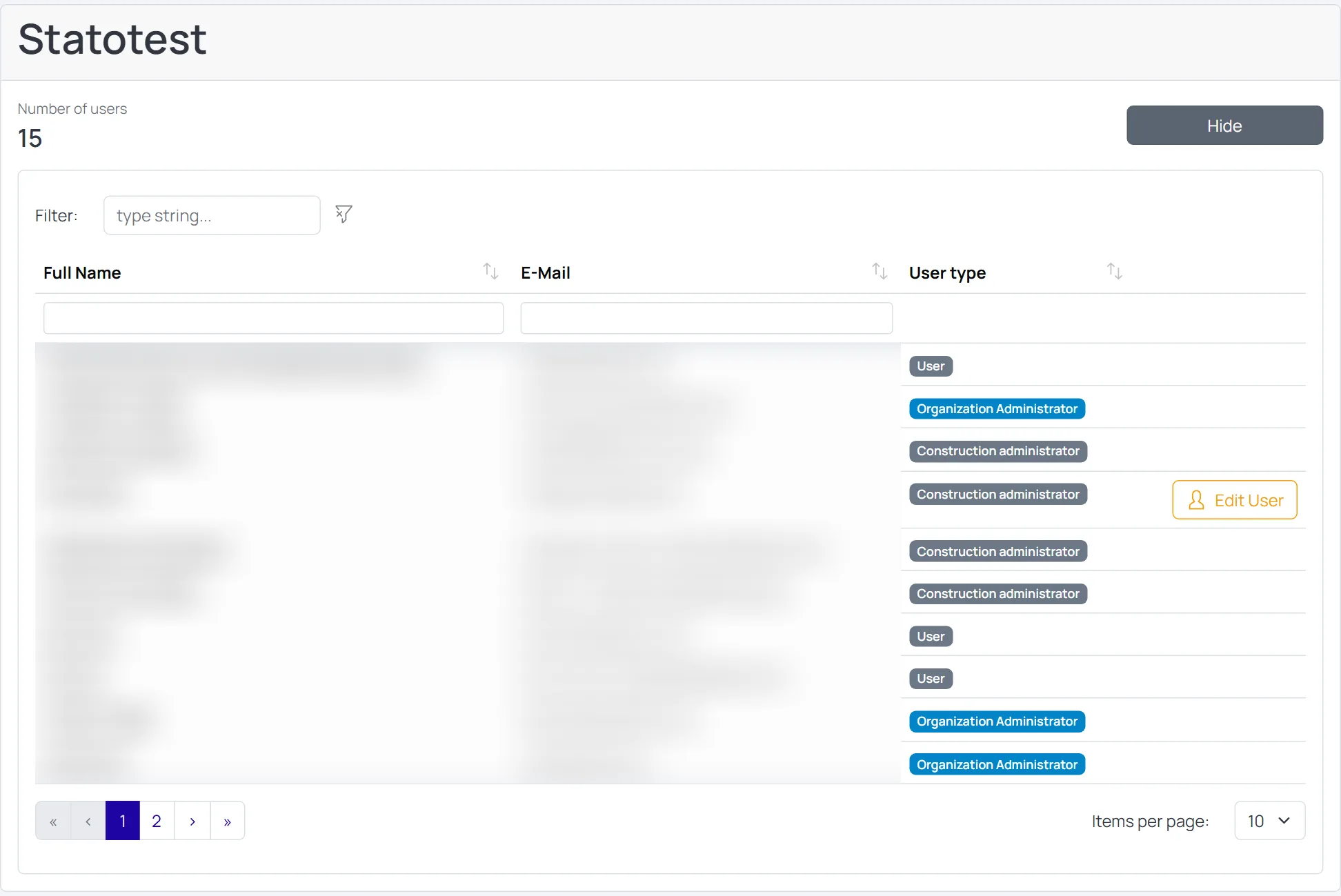
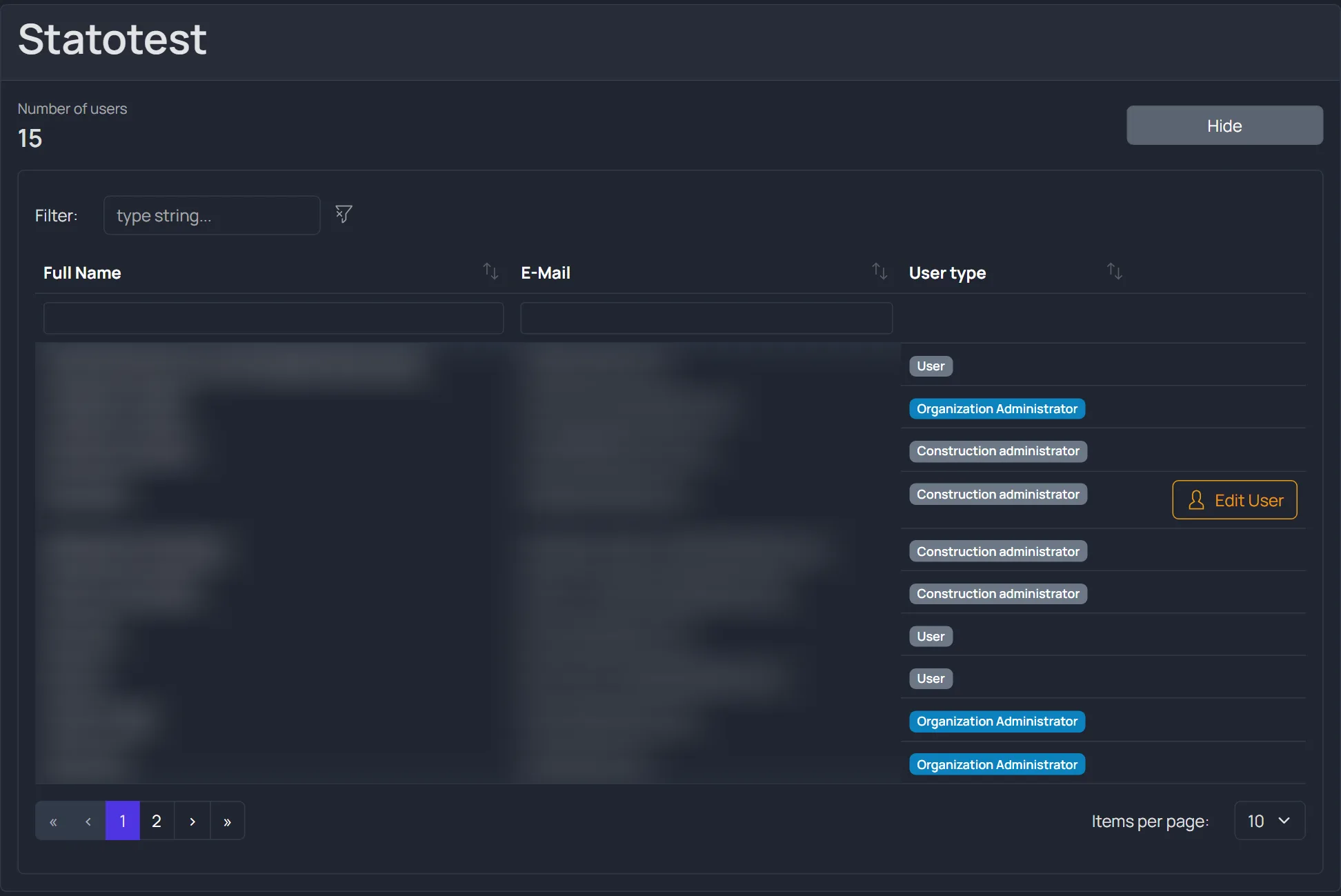
The table supports search, column filters, sorting, and pagination. See Table operations for tips.
Create a new user (Organization Administrator)
- On the relevant Organization card, click Create user
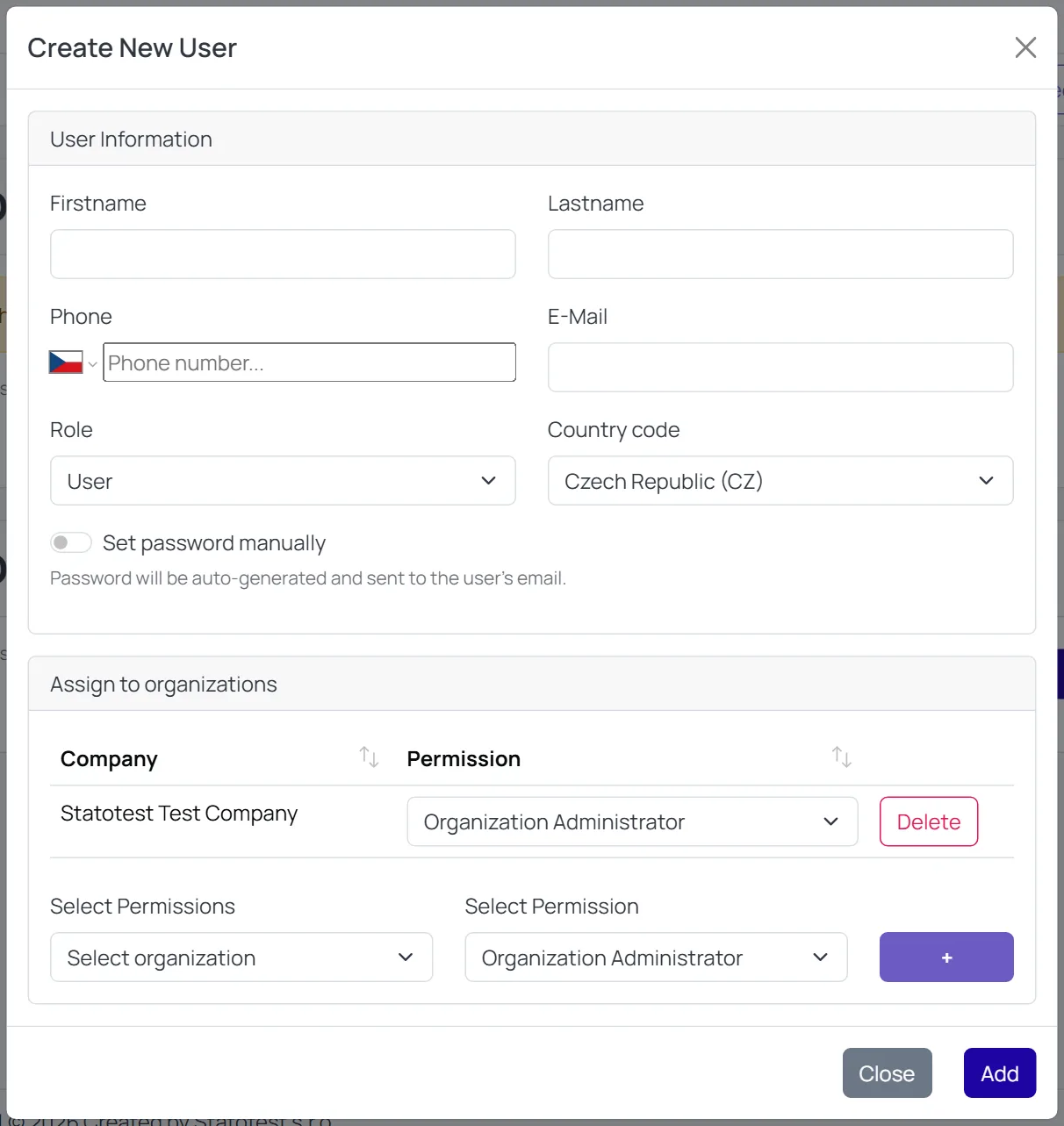
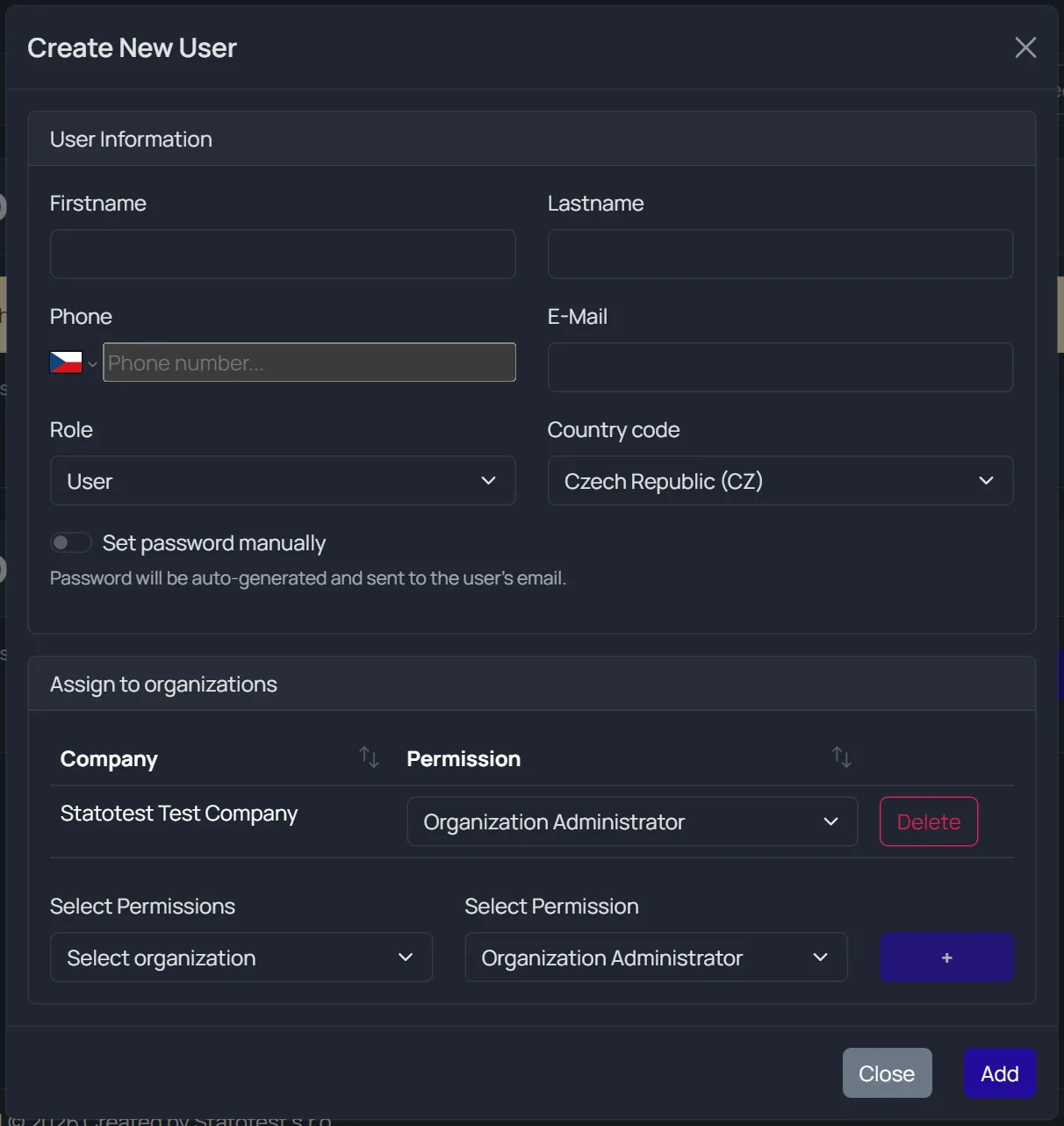
- In User Information, fill in:
- Firstname, Lastname
- E‑Mail (unique across Statotest)
- Phone — optional, but it has to be a plausible number when filled in
- Role — defaults to User
- Country code — sets the language of the e-mail the new user receives
- In Assign to organizations, ensure at least one Organization is listed
- Click Add
By default no password is entered: it is generated and sent to the user's e-mail ("Password will be auto-generated and sent to the user's email."). To set one yourself, turn on Set password manually, which reveals the password fields.
Expected feedback:
- Success message and the user appears in the table
- If the email already exists: “This email adress has been already registered.”
- If any required field is missing: you’ll see validation feedback
When the e-mail belongs to a deactivated account
An account that was removed is only deactivated, not erased, so its e-mail address stays taken. Creating a user with that address restores the old account instead of making a new one — what happens next depends on who does it:
| Who creates the user | What happens | Message |
|---|---|---|
| Global Admin | The account is restored immediately | "This account had been deactivated and was just restored." |
| Organization Admin | A recovery link is e-mailed to the account owner, who has to open it. Nothing is restored yet | "This email belongs to a deactivated account. A recovery link was sent to its owner — no new account was created." |
An Organization Admin only gets the e-mail path on purpose: the dormant account's Organization membership is dropped when it is removed, so nobody except a Global Admin can tell whose account it used to be. Sending the link to the address itself keeps a stranger's old account from being claimed by anyone who guesses the e-mail.
The owner's link leads to a confirmation page that either reports Account restored with a Go to login button, or Link no longer valid. Links are valid for 7 days and work once; requesting a new one invalidates the previous link, so only the newest e-mail works. The page cannot resend a link — an administrator has to repeat the attempt.
Restoring does not reset the password and sends no credentials, on either path. The owner signs in with the password they had before, or uses Forgot password? on the sign-in page if they no longer have it. Tell them this, otherwise a restored account looks broken.
This applies when the password is auto-generated, which is the default. With Set password manually switched on, a deactivated address is simply reported as taken ("This email adress has been already registered.") and nothing is restored. Leave the switch off if you are trying to bring an account back.
Neither path assigns the restored account to an Organization. Once it is back, use Assign user to give it the permissions it needs, exactly as for any existing user.
- Unless you are a Global Administrator, you can create only User and Guest accounts — even in an Organization where you act as an administrator. Granting an administrator role requires a Global Administrator.
- Creating a user also requires Organization Administrator in the target Organization. Construction Administrators cannot create or restore accounts at all.
- Set password manually is stricter still: it needs your account role to be Global or Organization Administrator. An administrator whose account role is User can create users the normal way but gets a permission error with the switch on — leave it off.
Assign an existing user to your Organization (Organization Administrator)
Use this when the person already has a Statotest account.
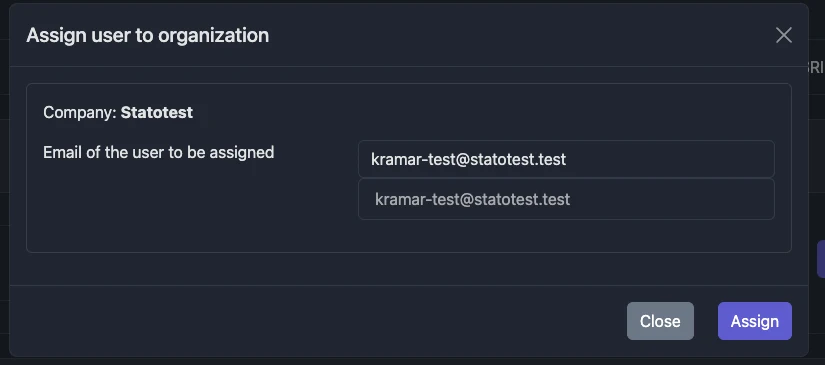
- Click Assign user on your Organization card
- Enter the user’s E‑Mail
- Confirm Assign
Notes:
- The account will use its existing password (nothing changes on their side)
- If the account is already a member, you may see a duplicate/permission-exists message
- The permission you can assign is limited by your own account role (see the note above)
Edit a user profile
- Every user can edit their own profile from the header menu or via the Edit User button next to their row
- Organization Administrators cannot edit other users’ profiles
- Global Administrators can edit any profile
See details in Profile Settings.
Change passwords
- Users can change their own password on the Profile page
- Organization Administrators cannot change other users’ passwords
- Global Administrators can change other users’ passwords when necessary
See Profile Settings for the self‑service password flow.
Unassign a user from an Organization
This action is reserved for Global Administrators and is not part of the standard Organization Administrator workflow. If you need to remove someone’s access, contact the administrator at info@statotest.com.
Update a user’s permissions in an Organization
If you need to change a user’s access level for your Organization (for example, from Construction Administrator to Organization Administrator), please contact the administrator at info@statotest.com.
Troubleshooting
- “This email adress has been already registered.”
- The account already exists and is active. Use Assign user instead of Create user.
- “This email belongs to a deactivated account. A recovery link was sent to its owner…”
- The address belongs to a removed account. Nothing was created; the owner has to open the link they were sent. See When the e-mail belongs to a deactivated account.
- The user says their reactivation link says “Link no longer valid”
- Links last 7 days, work once, and a newer link invalidates an older one — check they opened the latest e-mail. Otherwise ask a Global Administrator to restore the account or repeat the attempt to send a fresh link.
- A restored user cannot sign in with a new password
- Restoring keeps the old password. They should use their previous one, or Forgot password? on the sign-in page.
- Create user works, but fails with a permission error when I set the password manually
- Manual passwords need a Global or Organization Administrator account role. Turn the switch off and let the password be e-mailed instead.
- Can’t see Create user or Assign user buttons
- You need Organization Administrator permissions.
- I don’t see my changes immediately
- Refresh the page or sign out and in again.